
Teleprompter Updated September 26, 2026
A teleprompter for Mac that runs your slides
ArcLight is a Mac app that turns slides into live video, with a teleprompter that follows your script and runs your slides as you read. The prompter docks under the Mac's notch so your eyes stay near the camera, floats in its own window, or goes full screen and mirrored on a second display for a beam-splitter rig. It scrolls at a fixed speed or tracks your voice with on-device speech recognition. Cues in the script, such as [[Interview]], take that slide live when you reach them, so reading the script runs the show. It can start with Play or Record, and Stream Deck buttons control it.
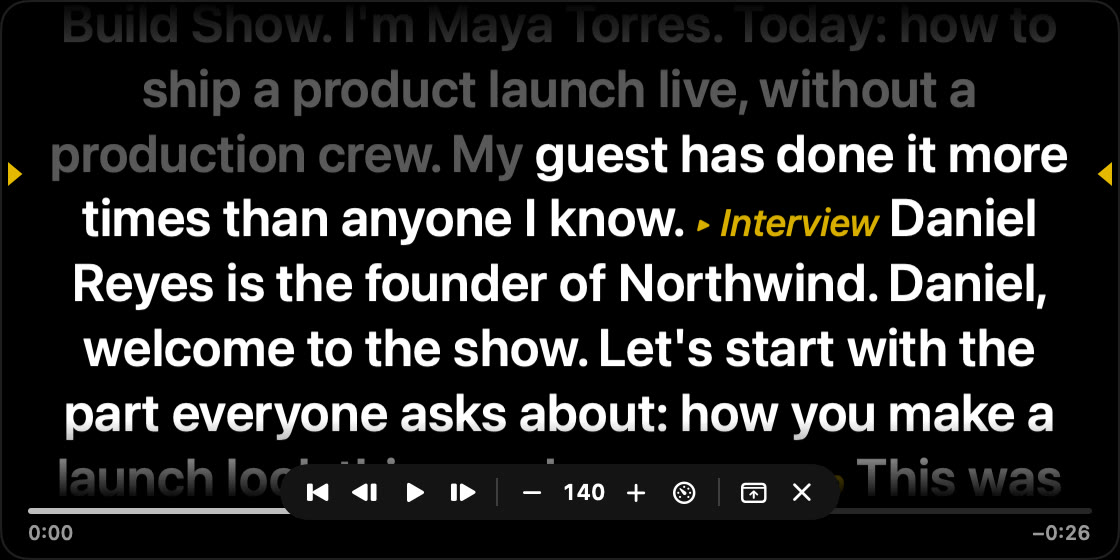
Three places to read from
| Placement | What it's for |
|---|---|
| Under the notch | Reading on a MacBook while looking close to the built-in camera |
| Floating window | Placing the script next to whichever camera you're using |
| Full screen, mirrored | A second display under beam-splitter glass, in front of the lens |
How it works
- Write the script in ArcLight's script editor, one text for the whole show.
- Add cues where a slide should go live, like
[[Interview]]. Cues point at slides, not positions, so renaming or reordering slides doesn't break them. - Pick a pace. Fixed speed runs from 60 to 300 words per minute. Follow Voice listens with on-device speech recognition and keeps your place as you speak.
- Start it by hand, or have it start with Play or Record, with an optional countdown.
- Control it from global hotkeys or Stream Deck: start and pause, faster and slower, next and previous cue, show and hide.
Because the prompter drives the same show as the presenter view, you can read your way through a talk and let the cues switch from you full frame to a screen demo to the closing card. The program goes to the ArcLight Camera virtual camera, a recording or a display.
Choose a standalone teleprompter if
you only need to read a script and produce the video in another app, or you want to prompt from an iPhone or iPad. ArcLight runs on the Mac only.
Choose ArcLight if
your script and your show are one thing: you want the slides to change as you read, and the finished video, recording or virtual camera to come from the same app.
Using Keynote? Its presenter display shows notes, the next slide and timers, but it doesn't track your voice. Source: Keynote: use the presenter display. ArcLight imports Keynote and PDF decks with their presenter notes.
Questions
Does ArcLight's teleprompter work under the MacBook notch?
Yes. The prompter can dock under the Mac's notch, so you read close to the built-in camera. It can also float in its own window or go full screen on a second display.
Can the teleprompter follow my voice?
Yes. In Follow Voice mode it tracks where you are in the script with on-device speech recognition. It can also scroll at a fixed speed from 60 to 300 words per minute.
How do script cues change slides?
Type a cue such as [[Interview]] where a slide should go live. When the prompter reaches the cue, that slide goes live with its transition. Cues point at slides, so renaming or reordering them doesn't break the script.
Can I use it with a beam-splitter teleprompter rig?
Yes. Send the prompter full screen to the display under the glass and turn on mirroring so the text reads correctly in the reflection.
Can I control the teleprompter with a Stream Deck?
Yes. Stream Deck buttons and global hotkeys can start and pause the prompter, change its speed, jump to the next or previous cue, and show or hide it. It can also start automatically with Play or Record.
Read your script. Run your show.
Free for 30 days · then $49 a year, launch price locked

Free for 30 days · macOS 14 or later