


Cue 04 Sources

ArcLight: build it like a deck, run it like a broadcast — live video from slides on the Mac
Build it like a deck.
Run it like a broadcast.
The Mac app that turns slides into live video — for Zoom, recordings and the big screen.
Free for 30 days, then $49/year.
Launch price, locked in for early supporters.
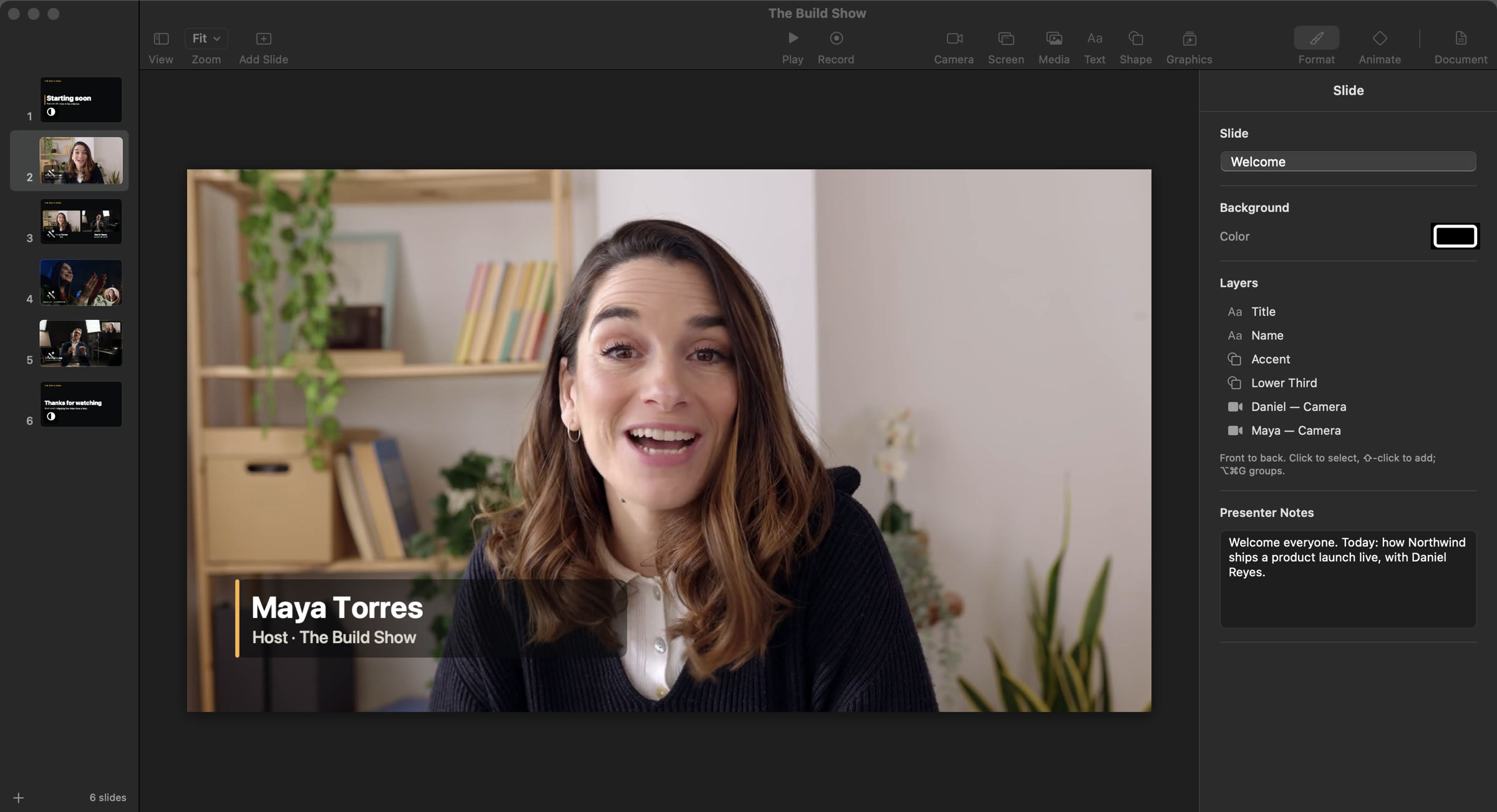
Broadcast software looks like a mixing console. Presentation software was built for a projector. ArcLight is a deck that goes live.
A complete editor for live shows.
Layout, type, style and motion — with the controls you already know from Keynote.
-
A transition on every slide. Magic Move, dissolves, wipes and stingers — each with a live preview as you choose.
-
Snap into place. Guides appear as edges and centers line up with the slide and with each other.
-
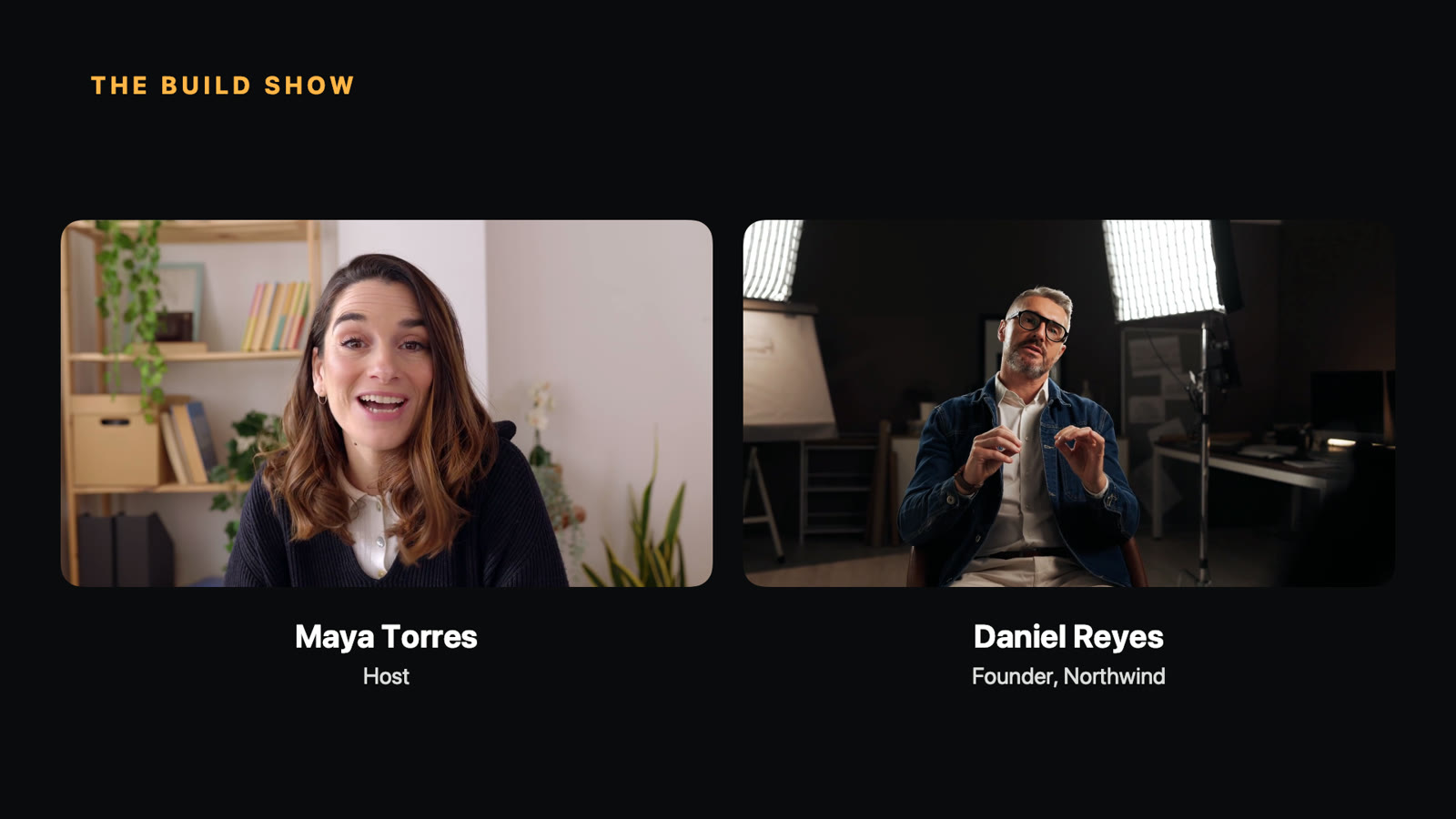
Cameras that glide. Magic Move keeps the same camera across slides and moves it to its new place — on air.
-
Builds with a click. Bring each layer in on your cue — fade, scale, fly or type on, word by word.
And a transition on every slide.
- Magic Move
- Dissolve
- Push
- Move In
- Zoom
- Wipe
- Luma wipe
- Swipe
- Bars
- Page Curl
- Ripple
- Stinger
 1 Starting Soon
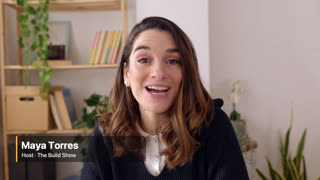 2 Welcome
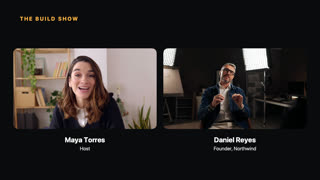 3 Interview
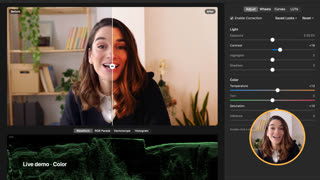 4 Launch Recap
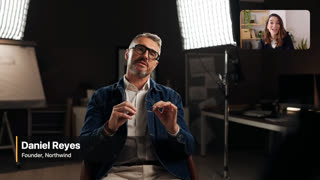 5 Guest Spotlight
Cue 01 The show
Magic Move,
for live cameras.
Every scene is a slide. Press → and your cameras glide to their next place — live.
Cue 02 AI
Your AI is the co-host.
ArcLight is built AI-first. It speaks MCP, so Claude — or any MCP client — can build slides, write the script, take the next slide and watch the program with you. Every change it makes is outlined on the canvas and one Undo away.
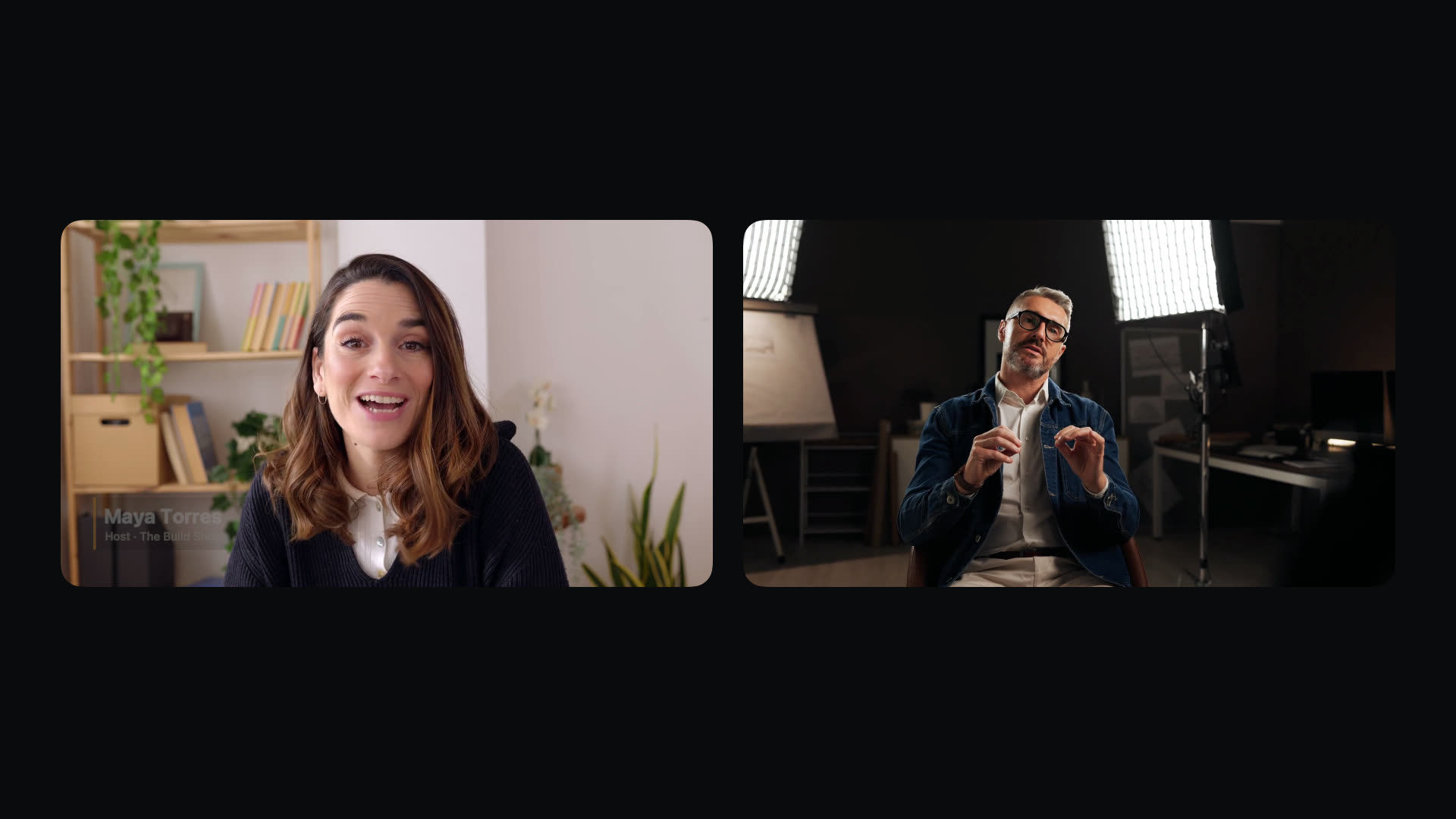
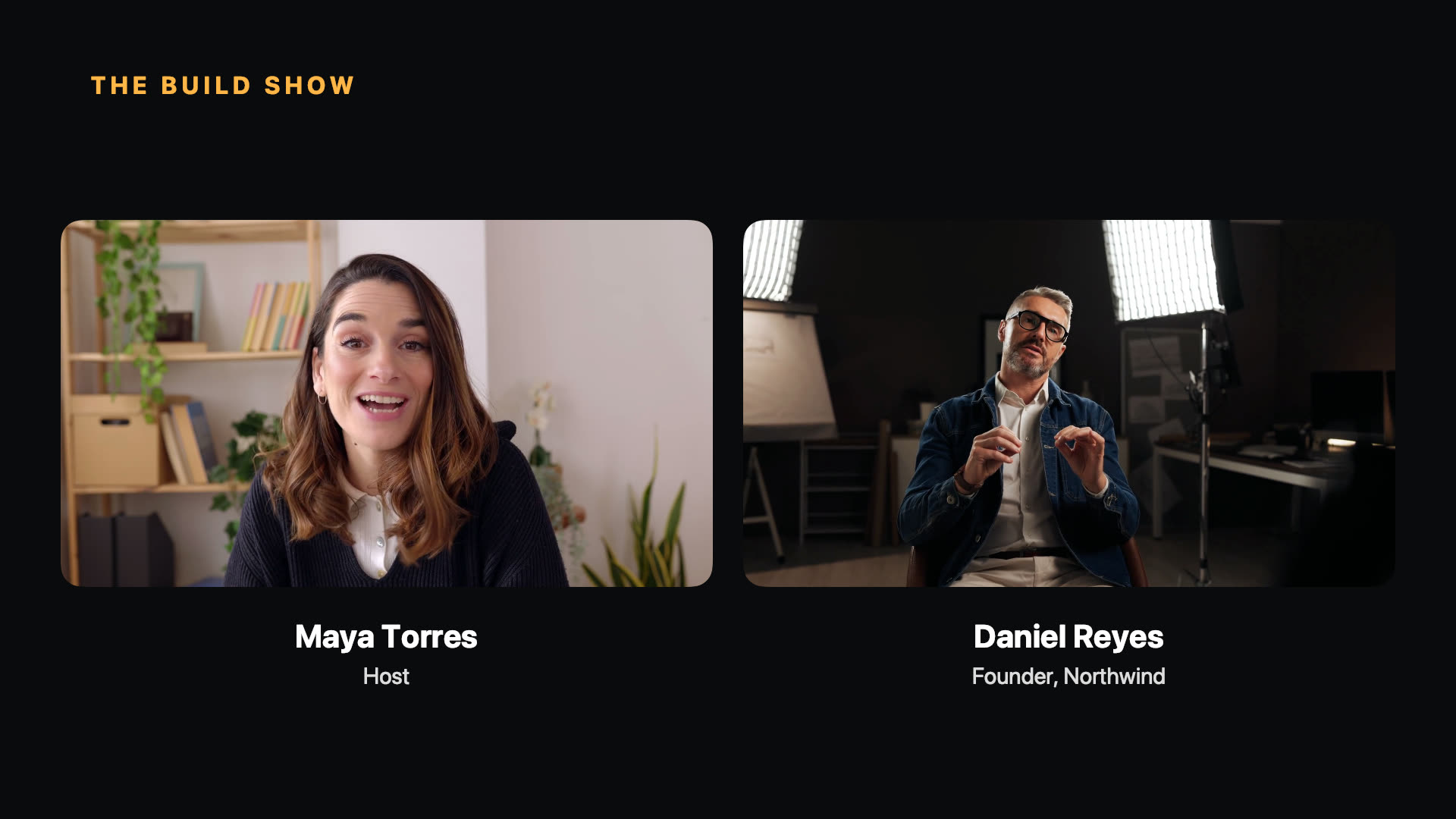
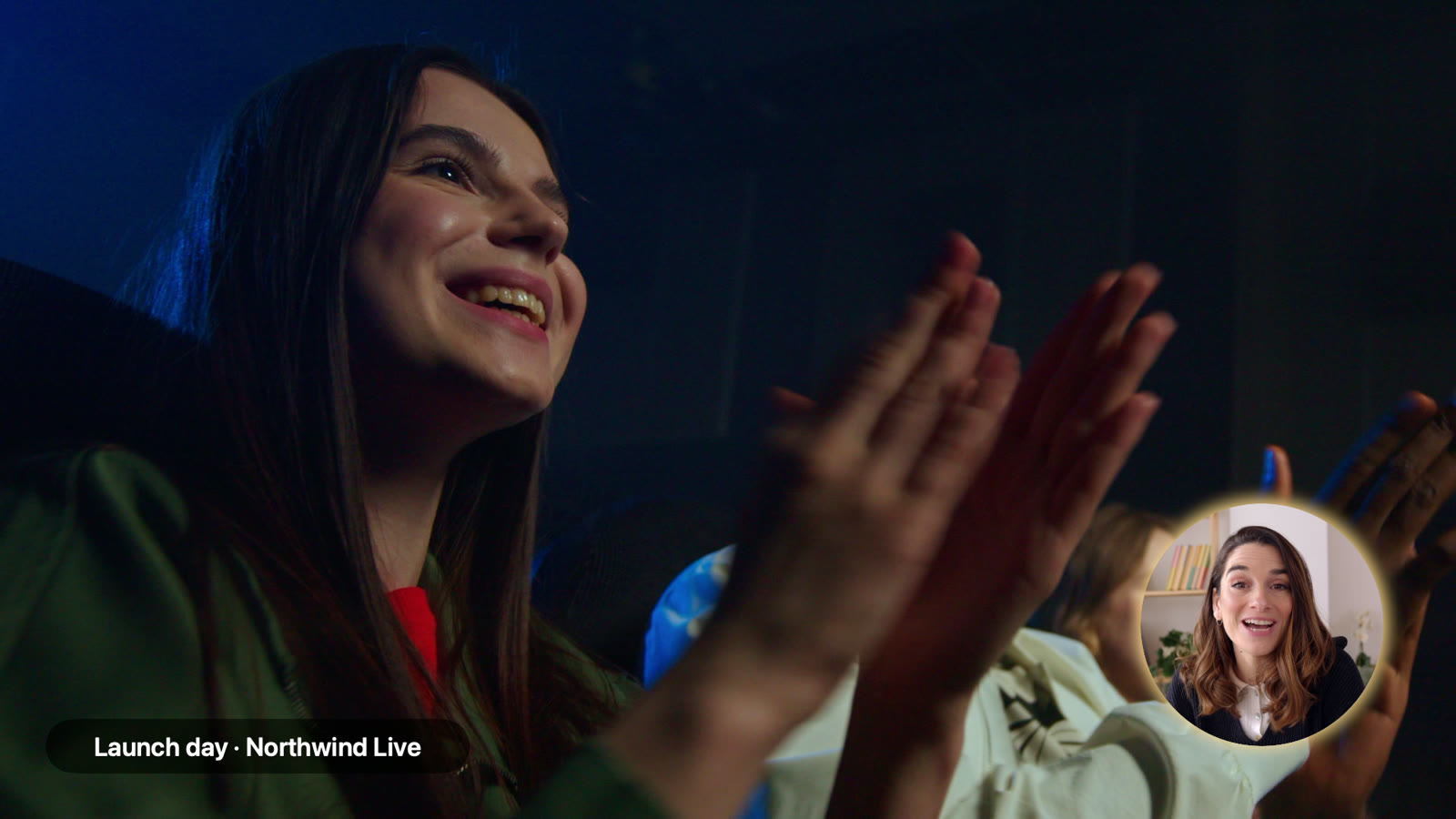
Sixteen effects at once. Not a beat missed.
Film looks, bloom, vignette, bokeh, halftone — stack sixteen or more on live cameras and ArcLight keeps every one in real time, on Metal.
Built for the Mac.
Big on performance. Easy on your fans. Native Swift on Metal — no browser engine, no cloud.
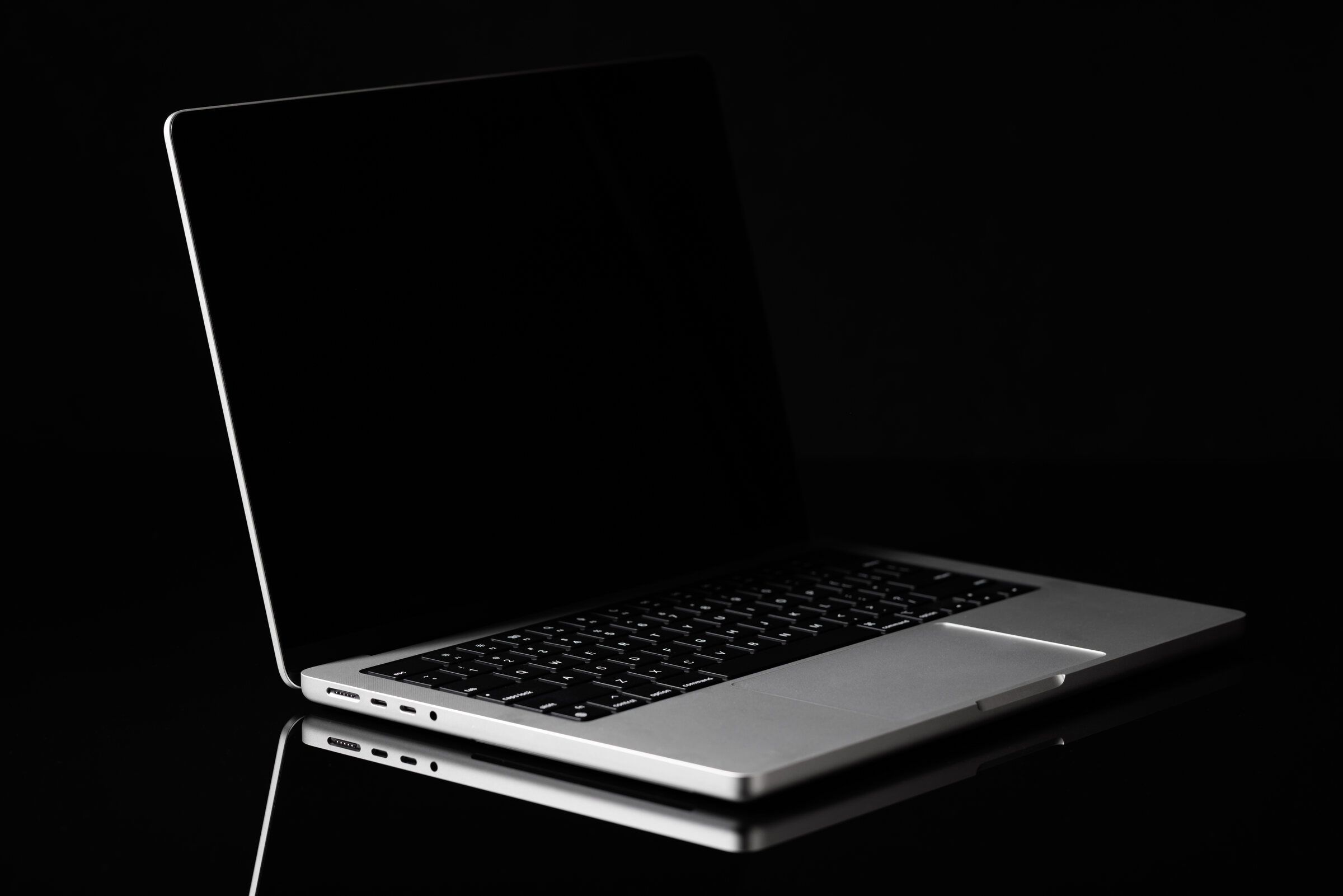
6%
of your Mac's CPU to run a seven-slide show with a live camera. Your fans stay quiet.
- 12%
- of the GPU for the whole program, previews included.
- 0
- extra copies of each camera frame between the sensor and your screen.
- 1
- renderer feeds the monitor, recording and virtual camera, so they always match.
Measured on the MacBook we build ArcLight on: Release build, seven-slide show, one live camera, 20-second average.
Cue 03 Any show
Every kind of show.
Made for people who present — on a stage, in a class, on a call or on their own channel.
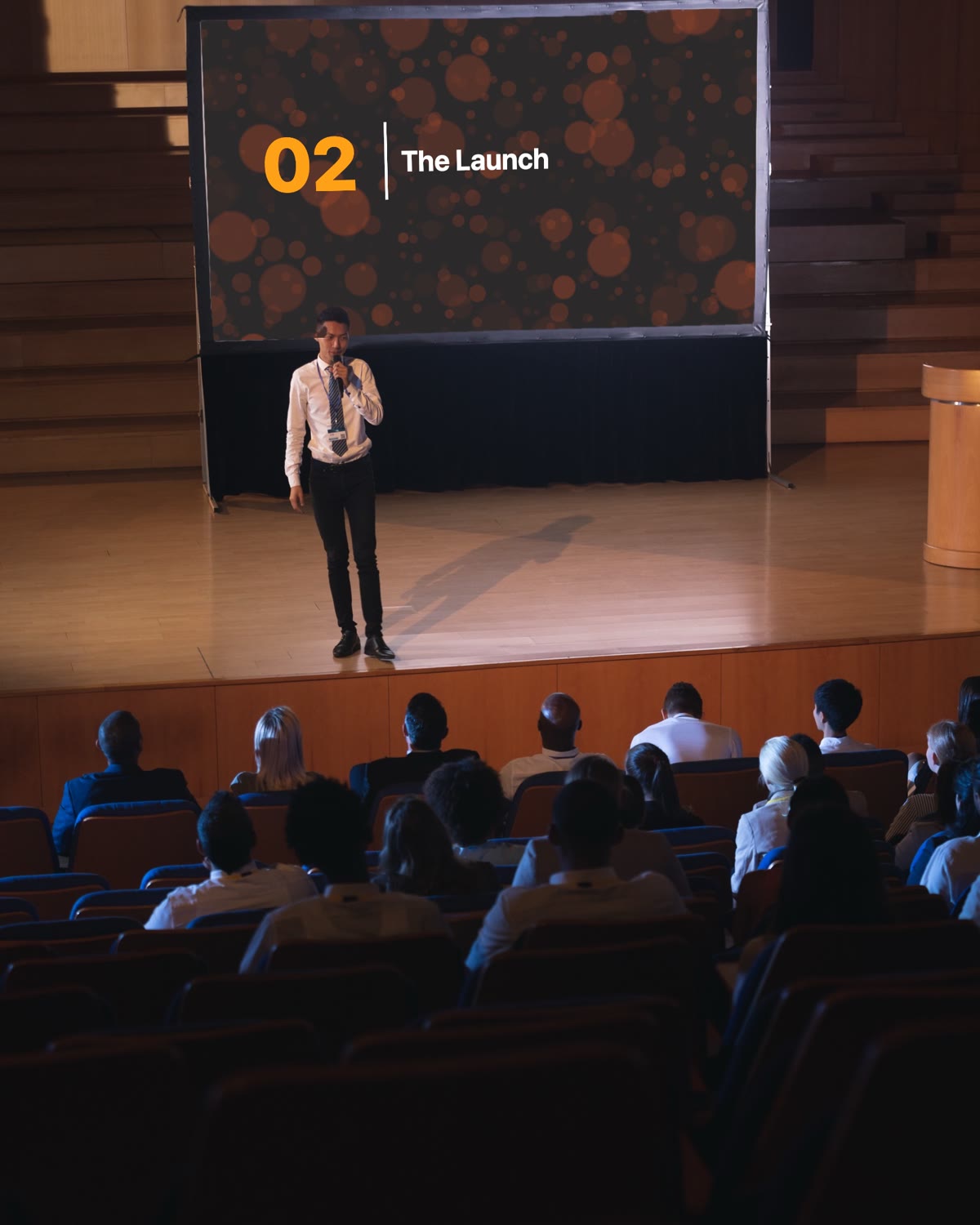 Events and teams
Presenter display
The program on the projector while notes, next slide and clock stay on your laptop.
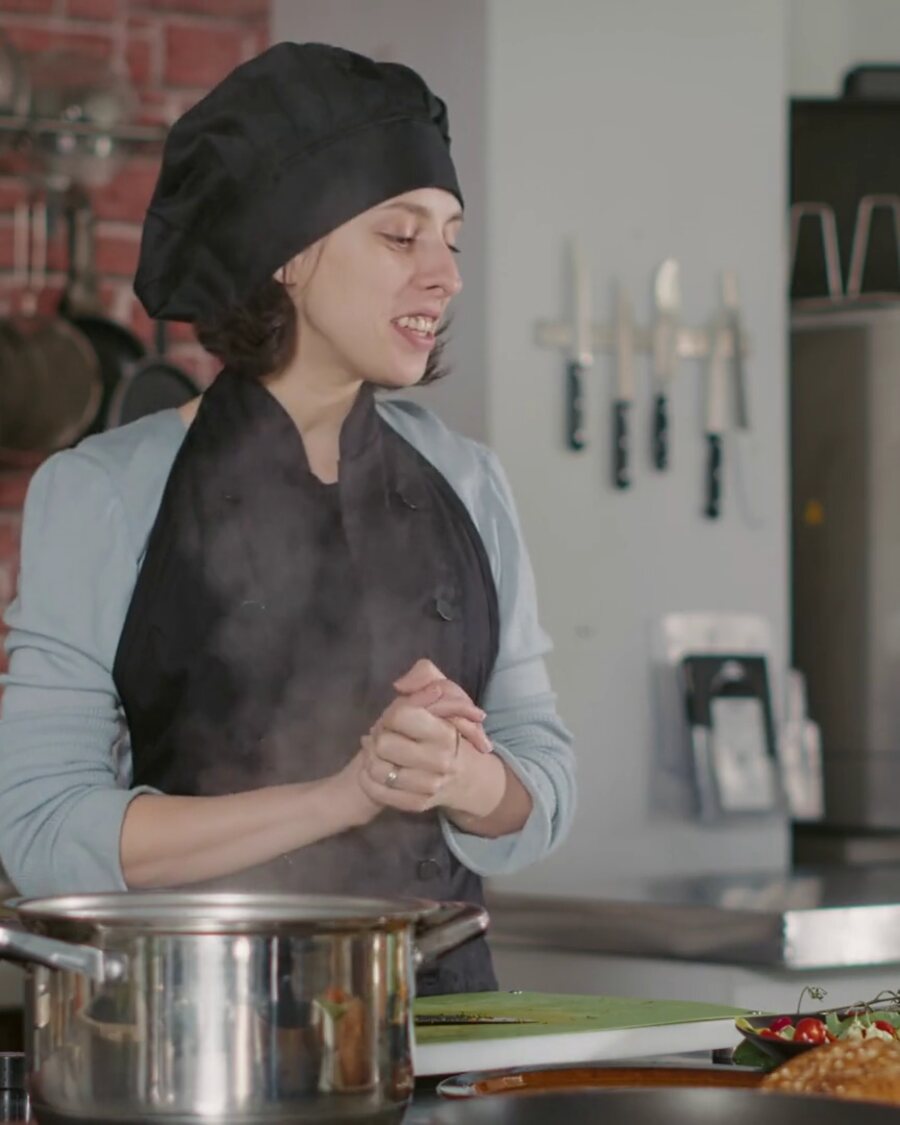 Teachers and trainers
Notch teleprompter
Read the lesson and keep eye contact — cues put the next slide up for you.
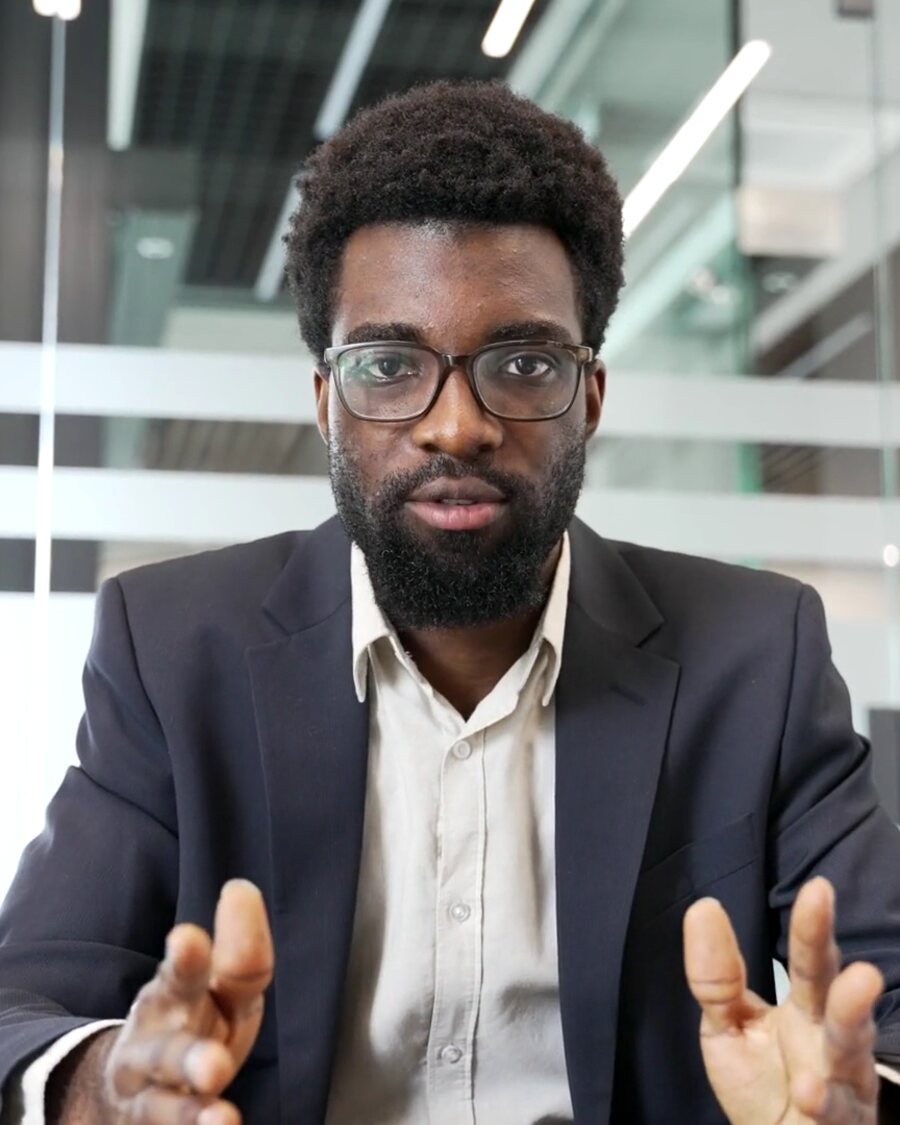 Sales and demos
ArcLight Camera
Your screen and your face arrive together, in any customer’s Zoom or Teams.
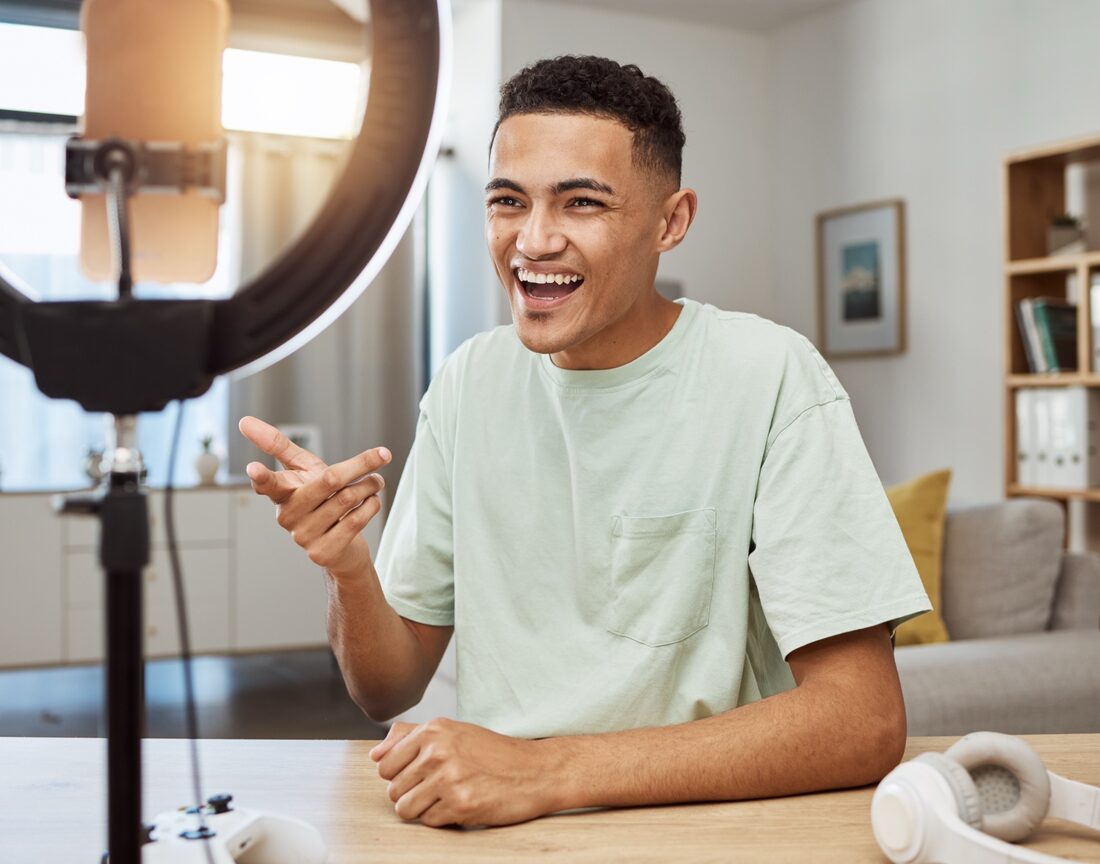 Creators and educators
Magic Move + recording
Glide between scenes live, and record the program as a finished .mov.
Every camera you own
Built-in, USB or your iPhone — one pipeline per camera, shared by every slide.
Circle and squircle masks
35
Effects to choose from
Plus any Core Image filter and blend modes.
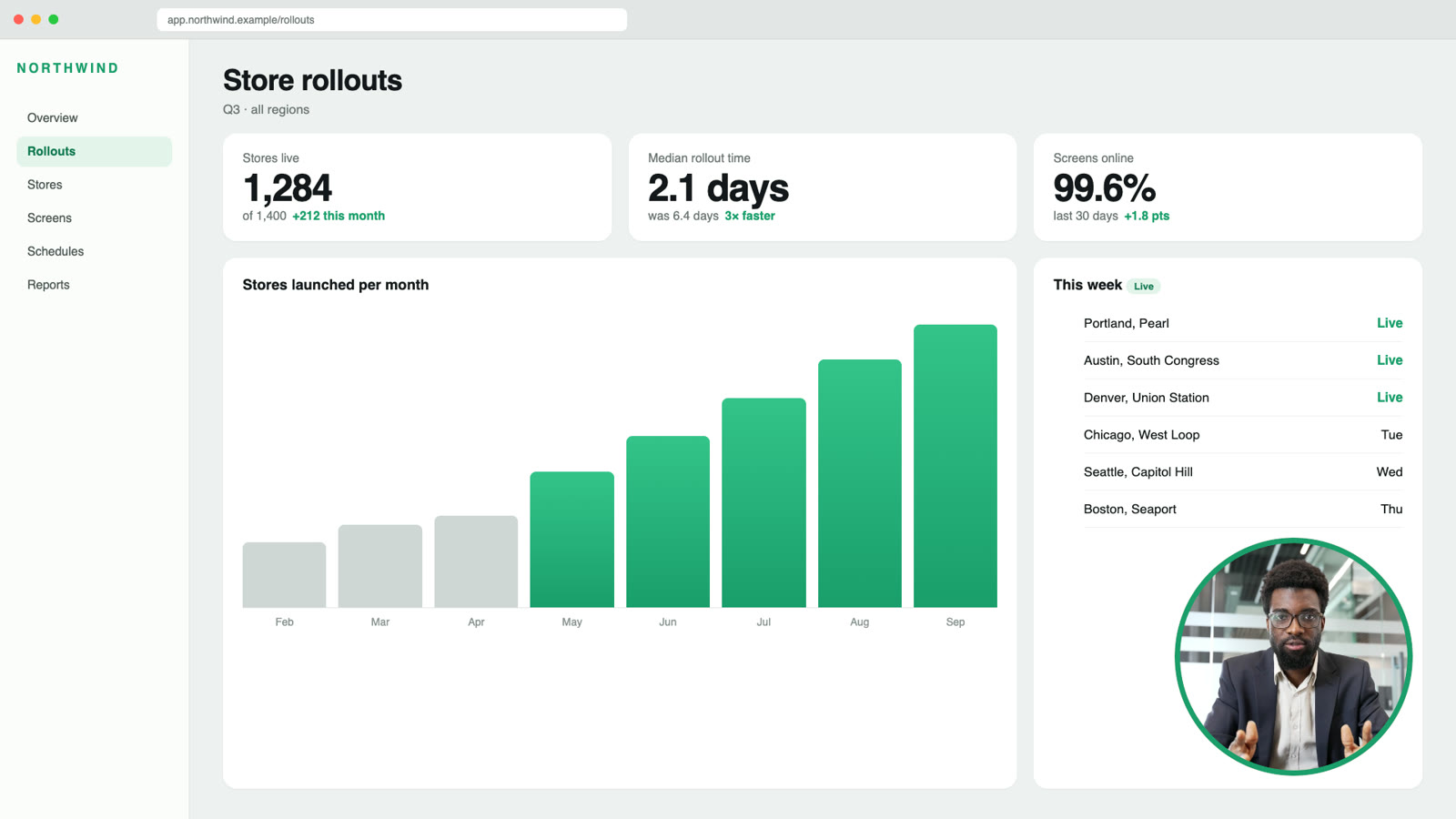
Screens and windows
ArcLight hides its own windows — no hall of mirrors.
Titles that build
Lower thirds and name straps animate in on your click.
Motion backgrounds
Bokeh, flowing color, light leaks, embers and snow — generated live on Metal.
Blur or remove it
No green screen.
Import Keynote and PDF
Every slide, with notes.
Video with alpha
Loop, play once, play and hide.
Clicker, hotkeys, Stream Deck


Cue 05 Color
Look like you hired a colorist.
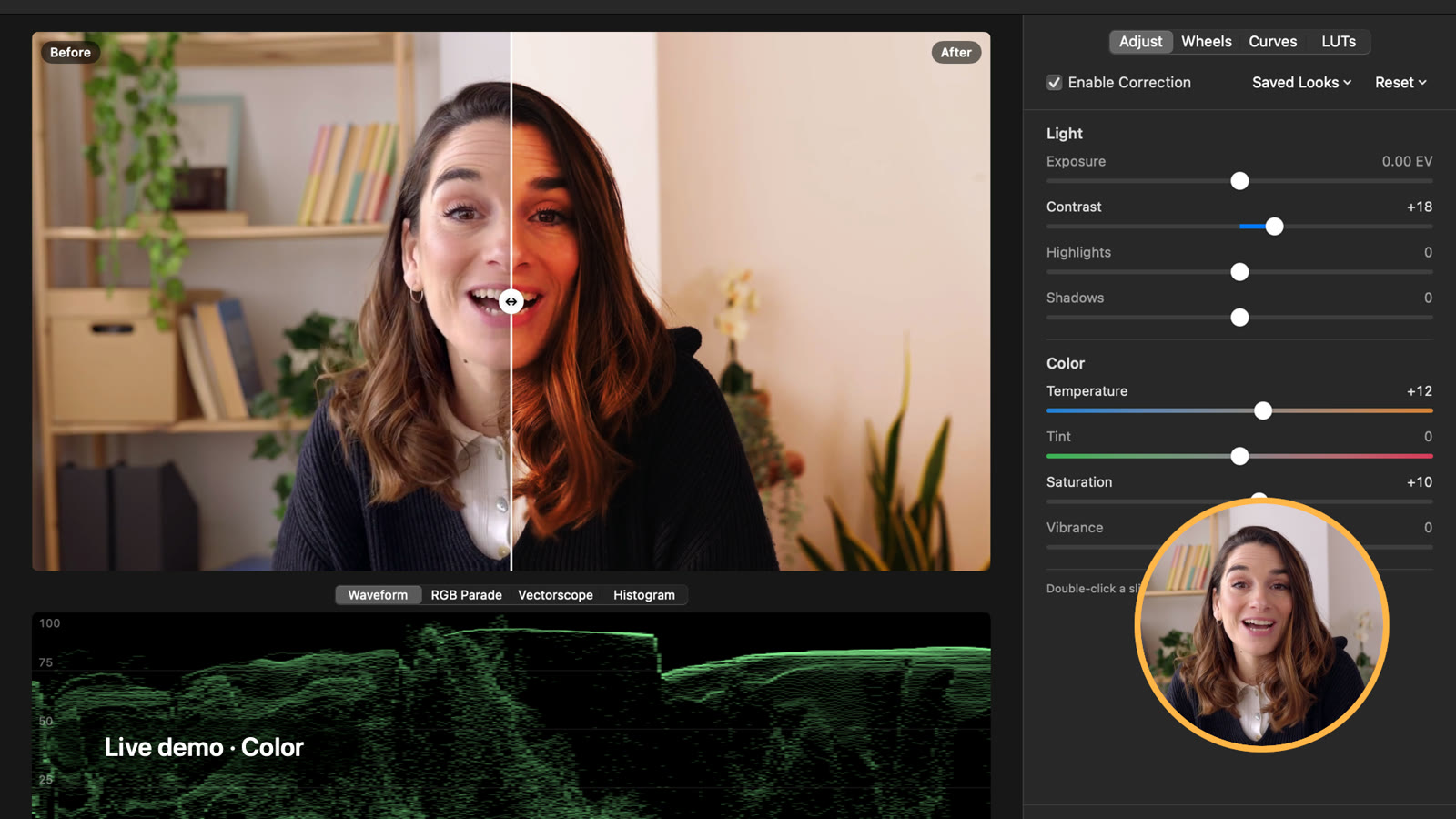
Grade each camera once and it matches on every slide — with the scopes a colorist would use.

- Per camera
- Grade once; every slide that shows the camera matches.
- Four scopes
- Waveform, RGB parade, vectorscope and histogram, live.
- Looks + LUTs
- Auto balance, ten cinematic looks, or your own .cube files.
Cue 06 Teleprompter
Your script, under the lens.
The teleprompter docks beneath your Mac's notch, so your eyes stay on the lens. Write cues into the script and the show follows your words: reach ▸ Interview, and the interview goes live.

On air

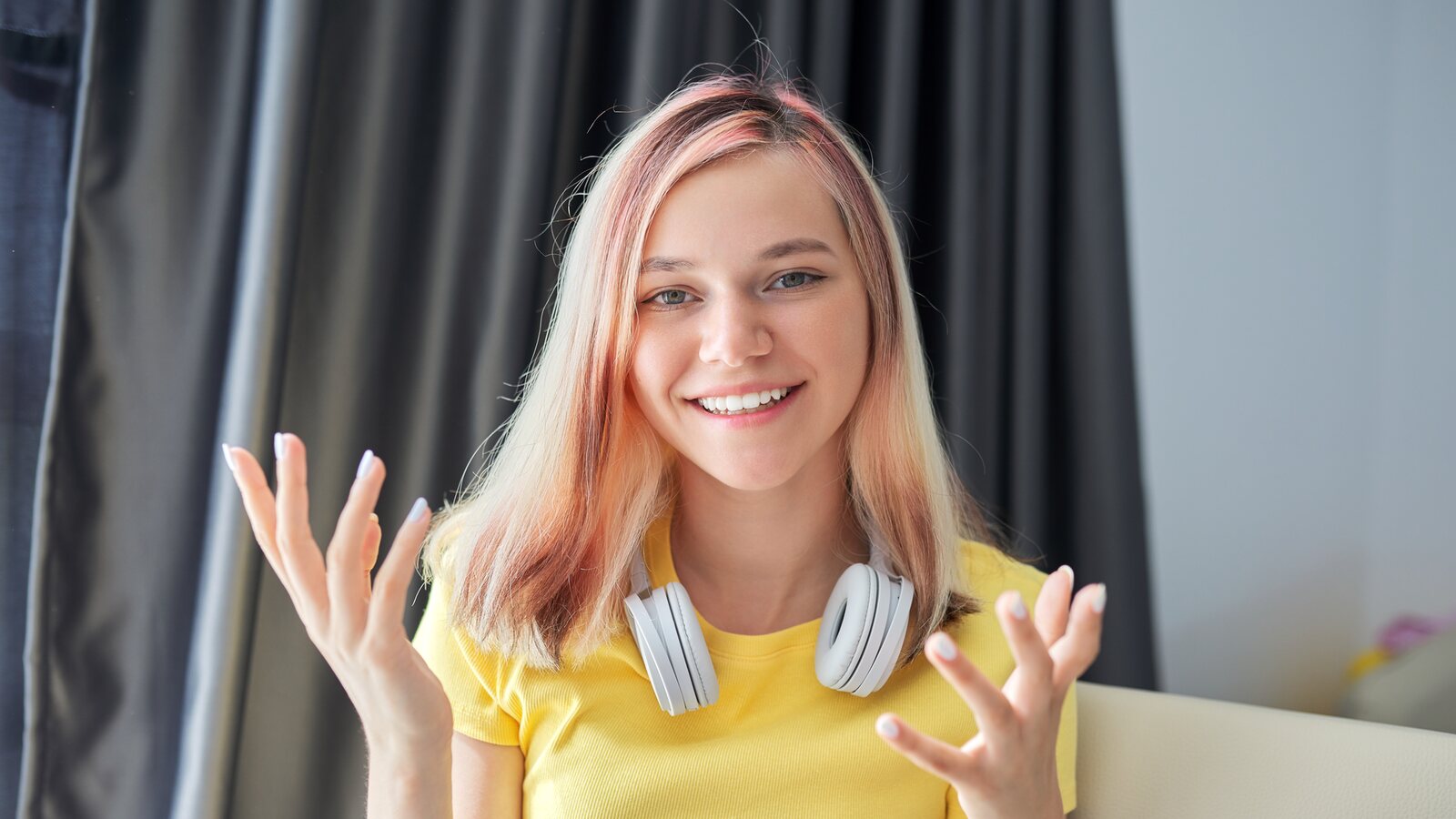
No crew.
Cue 07 Go live
Go live everywhere.
One program, sent wherever your audience is: stream it over RTMP, put it in Zoom as your camera, record it and show it on a projector — all at once.
Stream to
- YouTube The Build Show · Public
- Twitch buildshow
- LinkedIn Northwind · Company page
- RTMPCustom RTMP rtmp://live.example.com/app
Live on YouTube00:12:48
Works with anything that takes RTMP
- YouTube
- Twitch
- TikTok
- Kick
- X
- Restream
- StreamYard
- Any RTMP
server
Cue 08 On a call
Share your screen without disappearing.
In Zoom, Teams, Meet or Webex, ArcLight is simply your camera. Your screen, your slides and you arrive as one clear picture — for a client demo, a class or the Monday update.
Your camera in every meeting app
- Zoom
- Microsoft Teams
- Google Meet
- Webex
- Slack
- Discord
- Any camera
app
A note from the maker
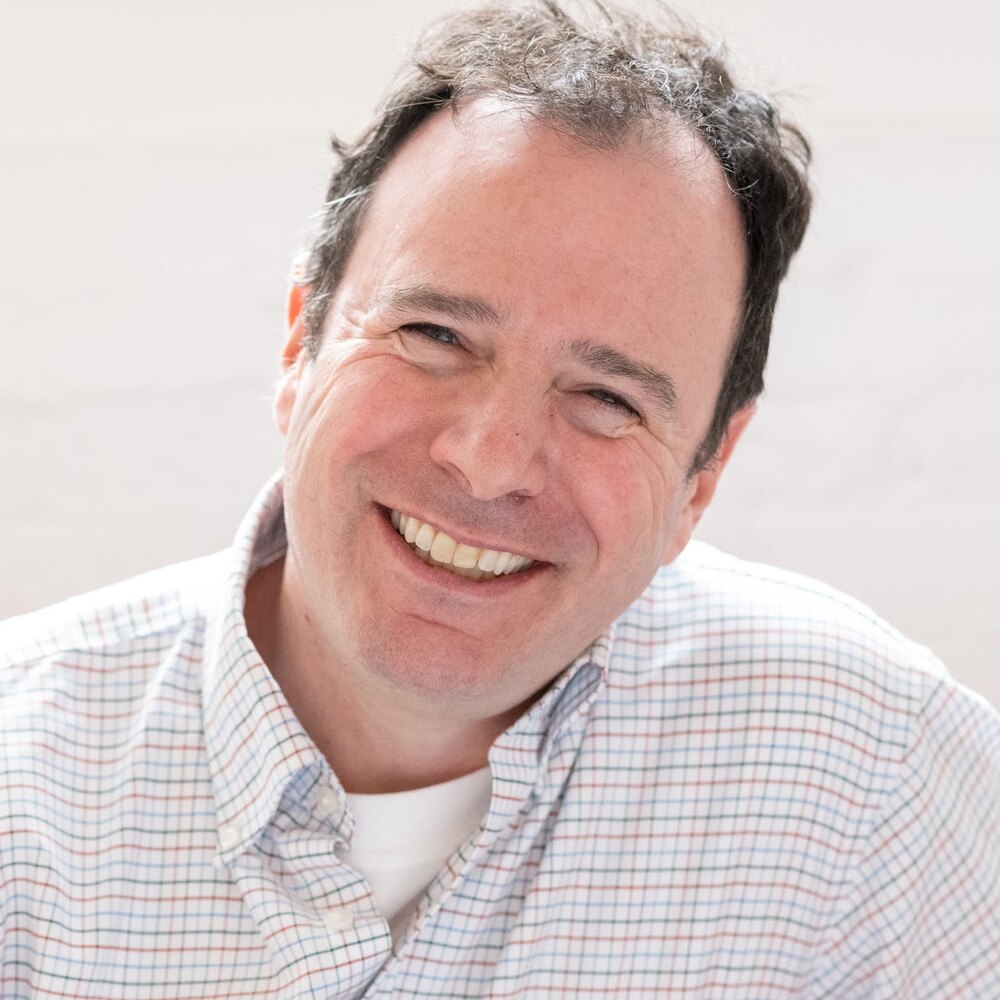
“I built ArcLight because tools like OBS and Keynote were getting in the way of storytelling. I wanted something that would make it easier and more fun to create content.”
Other questions?
Coming from OBS, Streamlabs or Camtasia? See an honest comparison — including where the others still win — or read the answers to everything else.
Your show is
one keystroke away.
Try every feature free for 30 days. Then $49 a year — the launch price, locked in for early supporters.

macOS 14 or later · Free 30-day trial