
Virtual camera Updated September 26, 2026
Use your slides and camera as one camera in Zoom, Teams and Meet
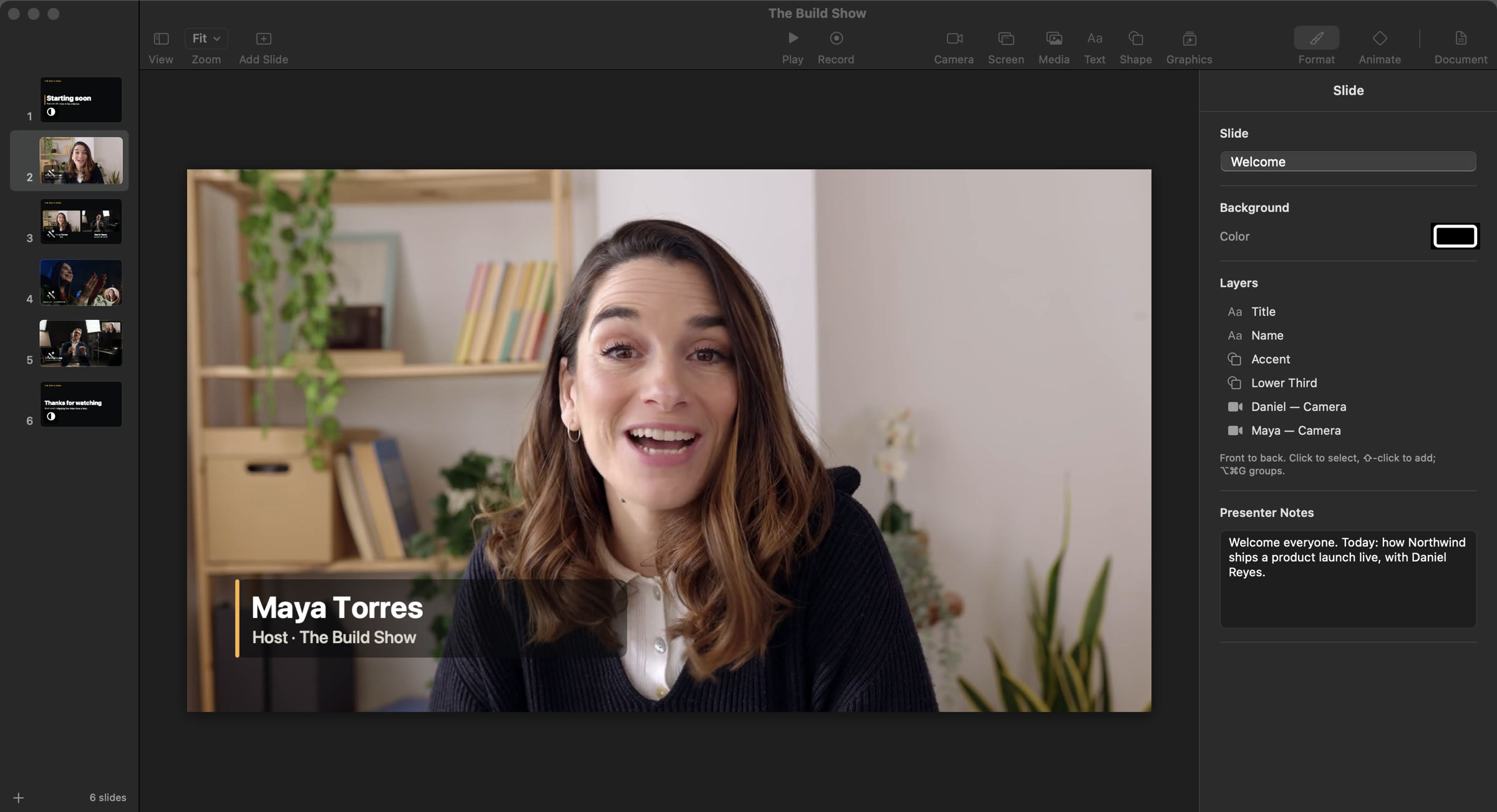
ArcLight is a Mac app that turns slides into live video, and it sends that video to Zoom, Microsoft Teams and Google Meet as a single camera called “ArcLight Camera”. Instead of sharing your screen and shrinking your face to a thumbnail, you build the talk as slides that hold your live camera, screen captures, titles and images, then press Play. Whatever the program output shows, from you full frame to your slides beside you to a screen demo, is what the meeting sees, with transitions such as Magic Move between slides. When you aren't playing, the camera shows a “starting soon” card instead of a frozen frame. It works in any app that accepts a camera, including Webex.
How it works
- Build your slides in ArcLight: your camera, a display or app window, images, video and titles, arranged per slide.
- Choose “ArcLight Camera” as the camera in Zoom, Teams, Meet, Webex or any other app that accepts one. The first time, macOS asks you to allow ArcLight's camera extension.
- Press Play and step through with the arrow keys, a clicker or a Stream Deck. Each slide's transition plays in the meeting.
- Stop, and the camera shows the “starting soon” card until you play again.
The virtual camera carries video only. Your call app keeps using your microphone as usual. The same program output can be recorded to a .mov at the same time, or shown on a second display.
Ways to put slides and a camera in a call
| Option | Virtual camera | How you build what's shown | Price |
|---|---|---|---|
| ArcLight | ✓ ArcLight Camera | Slides with live cameras, screens and titles | $49/year, 30-day trial |
| OBS Studio | ✓ built in | Scenes and sources | Free |
| Ecamm | ✓ Pro plan | Scenes and overlays | $32/mo Pro, billed annually |
| Airtime (formerly mmhmm) | ✓ | You, placed in imported slides | $10/mo billed annually |
| Keynote | — | Share the slideshow window instead | Free |
Sources: OBS virtual camera guide, Ecamm features, Ecamm pricing, Airtime pricing, Keynote presenter display. Checked on September 26, 2026.
Which one fits
Choose screen sharing if
the slides are the whole story and nobody needs to see you. It's already in your call app.
Choose OBS or Airtime if
you want a free virtual camera and don't mind wiring scenes from sources (OBS), or you want to appear inside imported slides on Mac or Windows (Airtime).
Choose ArcLight if
you want the talk built like a deck, with several cameras and screens, transitions, a presenter view and a teleprompter, and one clean camera in the meeting.
Questions
How do I use ArcLight as a camera in Zoom?
Build your show in ArcLight, then in Zoom's video settings choose “ArcLight Camera” as your camera. Press Play in ArcLight, and the program output, with your slides, camera and transitions, becomes your video in the meeting.
Does ArcLight Camera work in Microsoft Teams and Google Meet?
Yes. ArcLight Camera works in Zoom, Microsoft Teams, Google Meet, Webex and any other app that accepts a camera.
What do people see when I'm not presenting?
A “starting soon” card. ArcLight Camera shows it whenever the show isn't playing, so the meeting never sees a frozen or black frame.
Does the virtual camera send audio too?
No, it carries video only. Keep your microphone selected in the call app as usual. ArcLight's own recordings capture your microphone and program audio.
Bring your slides and your face into the meeting.
Free for 30 days · then $49 a year, launch price locked

Free for 30 days · macOS 14 or later